
Project Workspace
The Project Workspace is the main page for an individual project. It combines live operational work, review, and history in one place.
When to use this guide
Section titled “When to use this guide”Use this guide when you need to understand:
- what each project tab does
- how the records grid and Record Details drawer work together
- why a queue shows or hides records
- how virtual rows appear
- why builder actions appear or disappear
- what changes when a project is archived
Access and entry rules
Section titled “Access and entry rules”Users reach this page only for projects they are allowed to access, but reaching the page does not guarantee record visibility.
| Access result | Likely explanation |
|---|---|
| Project opens but queue is blocked | User has project shell/manage access without can_read or can_read_all. |
| Settings appears but records do not | can_manage or build/admin capability does not imply record read access. |
| Source rows differ by user | Snowflake row access policies, masking policies, or object grants differ. |
| Builder shortcuts disappear | User lacks build/manage access or the project is archived. |
See Permission Model for exact permission rules.
Page structure
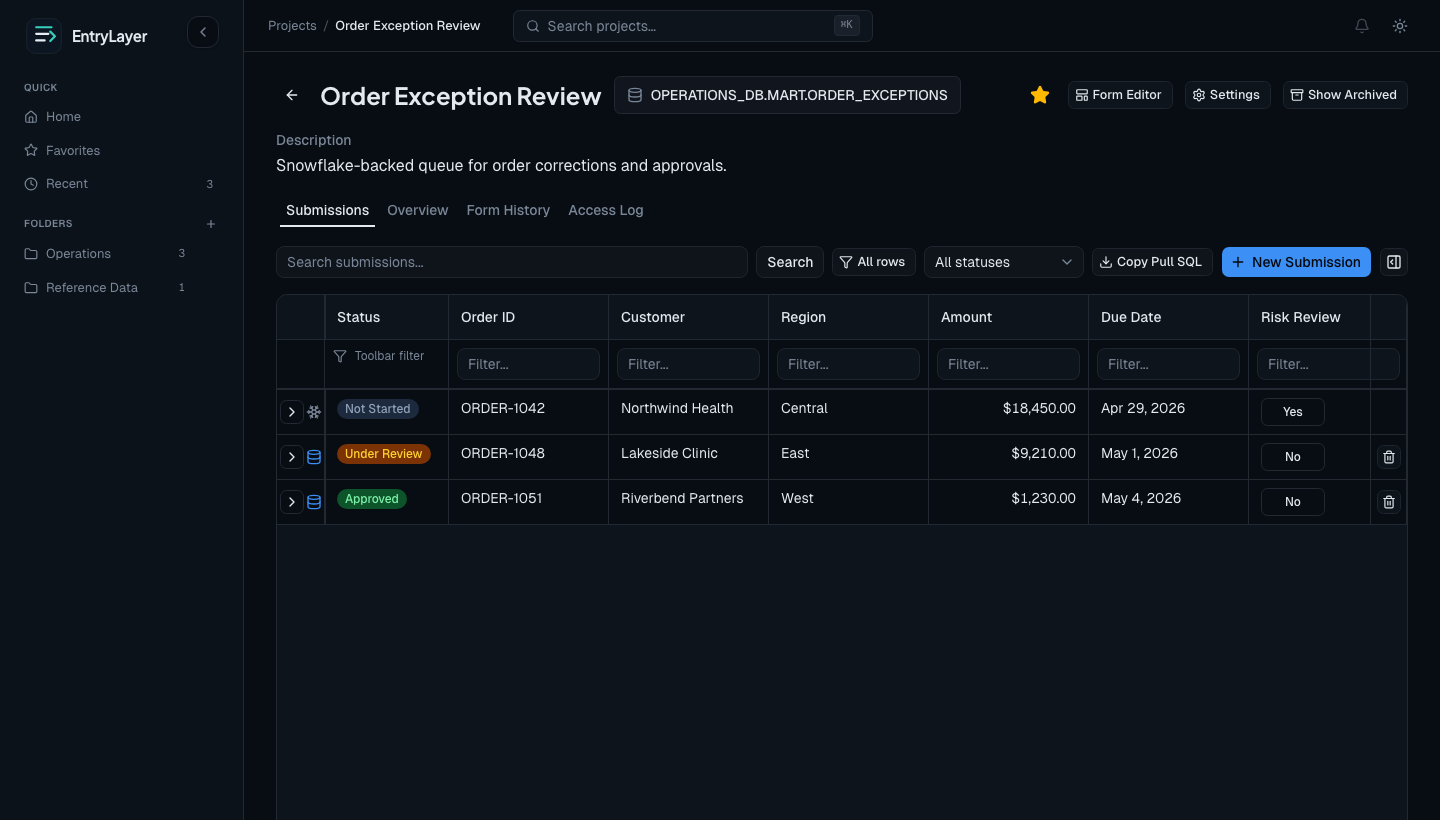
Section titled “Page structure”The workspace has five main areas:
| Area | Purpose |
|---|---|
| Header | Back navigation, title, favorite, Form Editor, Settings, archive controls where allowed. |
| Summary | Description and source context. |
| Tabs | Records, Overview, Form History, and Access Log. |
| Tab content | The active operational, review, or history view. |
| Context actions | Search, filters, new record, copy SQL, and archive toggles depending on permissions. |
Records tab
Section titled “Records tab”The Records tab is the primary working queue.
Depending on project configuration, it can show:
- local submissions
- virtual Snowflake-backed rows
- workflow status badges
- search, sorting, and pagination
- archived-record toggles
- index columns configured by builders
Records grid and drawer
Section titled “Records grid and drawer”The Records tab is split into two coordinated surfaces:
| Surface | Purpose |
|---|---|
| Records grid | Scan, search, filter, sort, and select records in the queue. |
| Record Details drawer | Review or work the selected record without losing queue context. |
| Full Submission Detail page | Use when the record needs more space, deep history review, child-record work, or focused workflow action. |
The drawer is not a separate permission path. It uses the same project permission, field-group, workflow, archive, and Snowflake source-access checks as the grid and full record page.
Typical interaction
Section titled “Typical interaction”- Use search, filters, or sorting to narrow the Records grid.
- Select a row.
- The row becomes the active selection and the Record Details drawer opens.
- Review the record, banners, workflow state, and field values in the drawer.
- Click Edit or an allowed workflow action only when the user has permission.
- Open the full Submission Detail page when the record needs focused work.
Permission behavior
Section titled “Permission behavior”| Situation | Expected behavior |
|---|---|
User lacks can_read and can_read_all | The grid and drawer should not reveal record data. |
User has can_manage but not can_read | Settings/access management can be available, but record values should remain blocked. |
| Field group hides a field | The drawer should follow the same hidden/read-only field rules as Submission Detail. |
| Workflow or archive state is read-only | The drawer should explain why editing is unavailable. |
| Source policies mask values | The drawer should show the Snowflake policy-protected value shape for that user. |
This matters for security reviews: the drawer is a convenience surface, not a bypass around the record access model.
Virtual and materialized rows
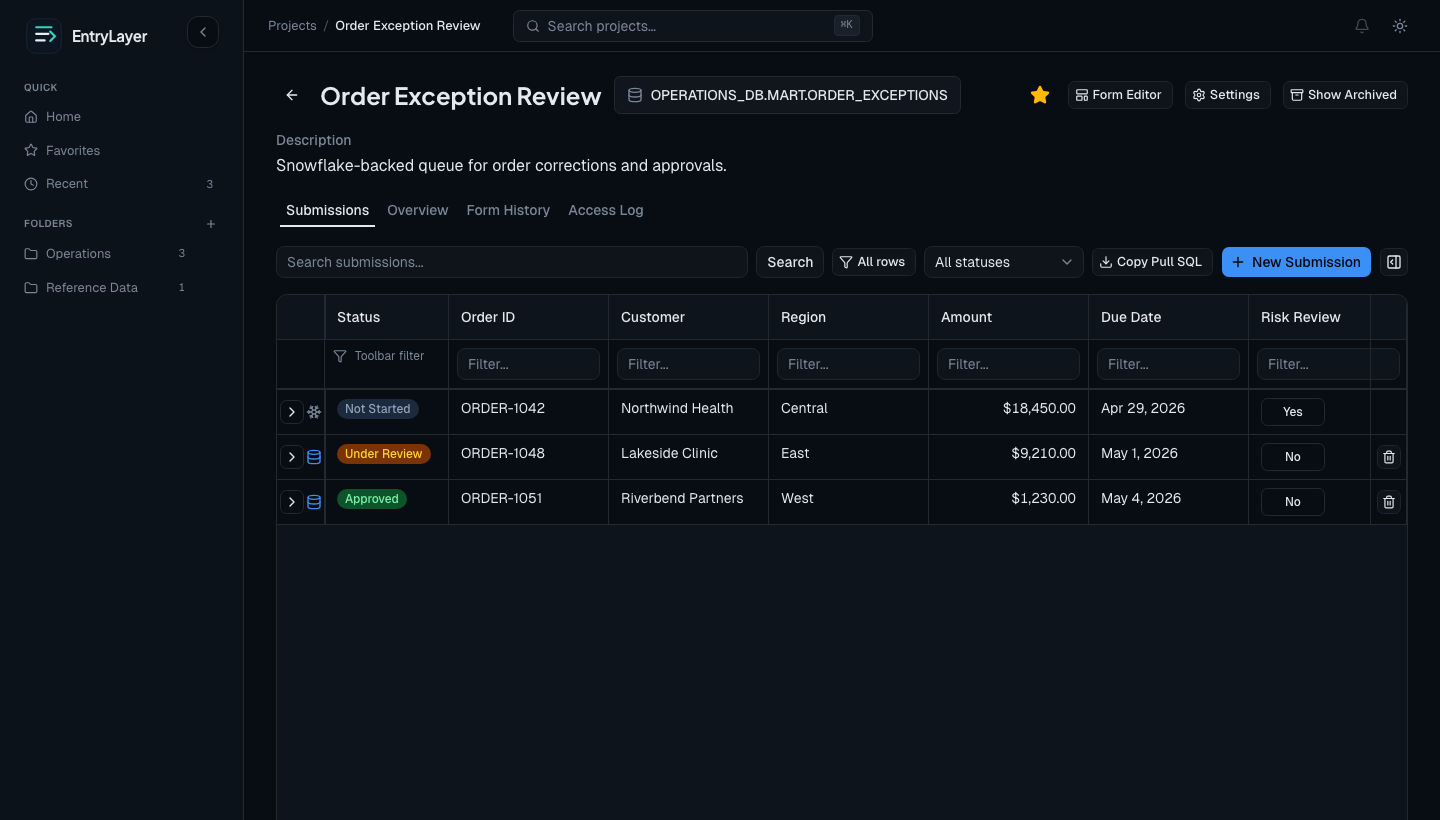
Section titled “Virtual and materialized rows”On Snowflake-connected projects, the queue can contain virtual rows.
| Row type | What it means |
|---|---|
| Virtual row | Source-backed row visible from Snowflake before a full local submission exists. |
| Materialized row | App-managed submission with workflow state, field history, and access history. |
Overview tab
Section titled “Overview tab”The Overview tab summarizes project health and activity. Depending on configuration, it can show:
- submission totals
- workflow summaries
- source-connected project information
- charts or counts by status
- child-project summaries where relationships exist
Use this tab for quick operational visibility, not full reporting.
Form History tab
Section titled “Form History tab”Use Form History to review structural and administrative changes such as:
- publish events
- field additions or removals
- section or layout changes
- project-level configuration changes
This is the main place to understand how the form definition evolved over time.
Access Log tab
Section titled “Access Log tab”Use Access Log to review project activity such as:
- record views
- edits
- archive or restore actions
- other tracked access activity
This tab is useful for audit and investigation work.
Archived behavior
Section titled “Archived behavior”Archived projects stay visible for context and auditability but become read-only for normal operations.
When a project is archived:
- the page shows archived context
- editing actions are removed
- builder shortcuts are limited
- eligible users can restore it
Practical workflow
Section titled “Practical workflow”- Open the project from Projects home.
- Use the Records grid to find the right row.
- Use the drawer for quick review or light record work.
- Open full Submission Detail for focused work, history, or child records.
- Use Overview for operational status.
- Use Form History to review structure changes.
- Use Access Log when investigating activity.
- Open Form Editor or Settings only when build/manage work is needed.